Robot vacuum care · Across brands
When should you clean or replace robot vacuum parts?
Start with the part that needs attention. Then choose a clean, a replacement or the next troubleshooting step.
Debris left behind, tangled brushes or dirty mop marks are useful starting points for a check. Use this guide for the parts fitted to your household robot vacuum or vacuum-and-mop.
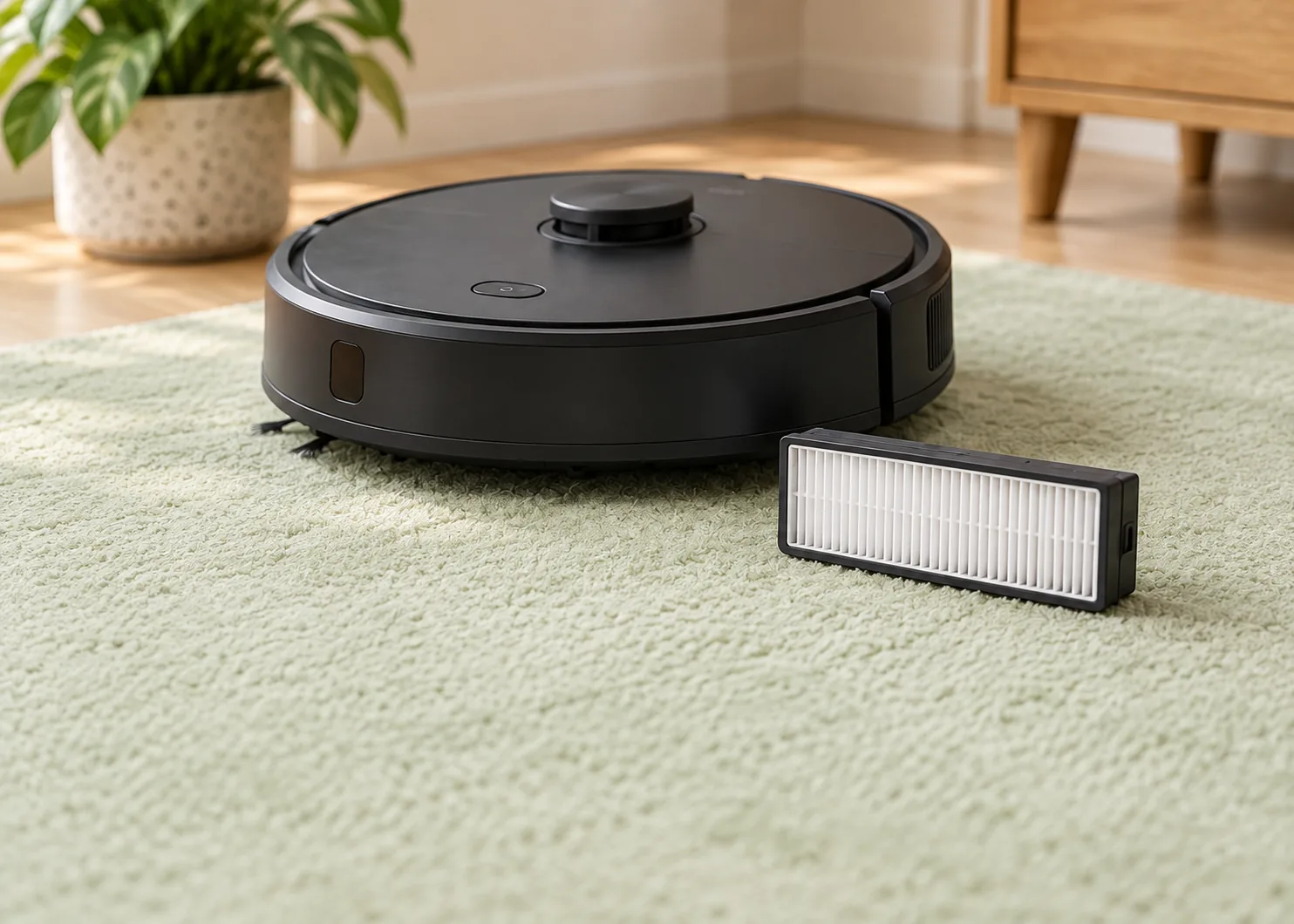
Dust or tangles?
Remove buildup, then refit the part using your model’s instructions.
Worn or damaged?
Choose the affected part, or follow its recommended replacement schedule.
Still not working?
Use the error code and symptoms to find the next check or ask support.
Choose your next step
Clean first, or prepare a replacement?
| Part | What you see | What to do first | Replace or investigate when… |
|---|---|---|---|
| Filter | Dust and lint on the surface. | Clean as directed, inspect the material and frame, then refit. | Replace damaged material or frames, or follow the replacement schedule. If pickup stays poor, check the bin, inlet, brush and settings. |
| Main brush / roller | Hair around the surface, ends or housing. | Clear these areas and any removable end caps specified in the manual, then refit the frame. | Replace a damaged or heavily worn brush. If it still sticks or reports an error, follow the brush troubleshooting guide. |
| Side brush | Hair around the mounting post or dust on the bristles. | Clean the bristles and mounting area. | Replace a broken brush arm or bristles that are severely worn or missing. |
| Mop pad / roller mop | Dirt, hair or dirty-water residue. | Clean the mop, check the dirty-water tank and wash tray, and complete the specified drying process. | Replace torn or worn-through cleaning material or damaged attachments. For persistent streaks or poor water delivery, check flow, fitting and settings. |
| Disposable dock bag | A full or damaged bag, or poor automatic emptying. | Replace a full or damaged bag. For poor emptying, check the opening, fitting and collection path. | If a correctly fitted new bag does not resolve the issue, troubleshoot the dock. Empty and clean the container on a bagless dock. |
| Sensors / charging contacts | Dust or marks on the surface. | Use the soft-cloth method specified for your model. | If detection, charging or warnings remain abnormal, follow the error instructions or contact support. |
This table is our editorial decision aid. Before handling parts, stop the task and switch off the robot; follow the dock’s power-off instructions for dock maintenance. Use your model’s removal, washing and drying instructions.
01 / Filter
Clear the dust, then check condition and timing
Check the filter when emptying the bin. After cleaning, inspect the material for tears, the frame for distortion and the fit before deciding whether to keep using it or replace it.
Choose the cleaning method for your filter
| Model | Cleaning method | Before refitting |
|---|---|---|
| Roomba 800 / 900 Series | Remove the filter and gently tap debris into a waste container. These filters use dry cleaning. | Inspect its condition and reinstall as shown in the instructions. |
| eufy X10 Pro Omni | Rinse the filter and dustbin as directed in the manual. | Let both dry completely before use. |
For washing and drying steps, use the dustbin and filter washing guide.
If pickup stays poor after cleaning, follow the collection path: bin, suction inlet, brush, then cleaning mode. eufy’s X10 Pro Omni troubleshooting covers these areas and suction settings. Keep following your model’s filter replacement schedule.
eufy weak-suction troubleshooting02 / Main and side brushes
Clean the ends and mounting areas too
After clearing the main brush surface, check both ends, the end caps and the brush housing. For a side brush, check the bristles and mounting post. Remove tangles, refit as directed and make sure the brush frame is secured.
Keep maintaining intact parts that work normally after refitting. Add a damaged brush body, broken arm or severely worn bristles to your replacement list. If sticking or errors persist, note the warning and follow the brush troubleshooting instructions.
For other models, follow their own end-cap and installation instructions.
03 / Bins and sensors
The bin is empty. Why does it still say “full”?
Confirm that the bin is empty and seated correctly, then check the areas used for full-bin detection.
| After emptying and refitting | Next step |
|---|---|
| The warning clears and operation returns to normal | Resume use and keep to the filter and bin care schedule. |
| The empty bin still reports “full” | Find your model’s full-bin detection instructions. Clean the specified sensors and windows, refit and check again. |
| The warning remains after those checks | Record the model, warning and completed steps so brand support can help. |
Roomba 800 / 900 example: iRobot directs owners to use a clean, dry microfiber or soft cotton cloth on the robot’s sensors and the bin’s inner and outer sensor ports. Locate and clean all three areas using its diagrams.
iRobot AeroForce bin and full-bin sensor careFor automatic-emptying problems, check the dock separately: bag opening, bag condition and collection path. Use the dust bag buying and condition guide when choosing a new bag.
04 / Mop pads and roller mops
Clean the surface, then check the dirty-water areas
Clean the pad or roller mop, then check the dirty-water tank and wash tray. Wash, dry and refit each part as your model directs. The Roborock Q Revo manual, for example, gives separate care steps for its mop pads, dirty-water tank and cleaning tank.
Roborock Q Revo maintenance manualOur buying check: replace the affected component when its cleaning material is worn through or torn, or its attachment is damaged. If the material is intact but streaks, smells or water-delivery problems continue, check washing, drainage, fitting and settings.
Follow the mop streaks, smells and tangles guide for those checks.
05 / Check the result
After cleaning, turn the result into a next step
Refit all parts and complete the specified drying process. Run a suitable, recorded cleaning mode on an area where you normally notice the problem. Check debris left behind, brush operation and warnings. This is a household-use check; there is no need to scatter powder or create test debris.
| Result | Action |
|---|---|
| Cleaning improves; parts are intact and not yet due for replacement | Keep using them and record the cleaning date. |
| One consumable is damaged or heavily worn | Add that item to the replacement list and check parts for your model. |
| The manufacturer’s replacement time has arrived | Replace that part on schedule and record the installation date. |
| Parts are intact but cleaning is still poor | Check the inlet, air path, brush-frame installation and cleaning settings, then follow symptom-specific troubleshooting. |
| The same warning, sticking or unusual noise remains | Record the full model, warning and checks completed. Use the official troubleshooting guide or contact support. |
This result-to-action table is our editorial guidance for choosing between cleaning, consumable replacement and troubleshooting.
06 / Replacement timing
Record the schedule and the part’s condition together
Find your model’s care schedule in its manual or app. Intervals vary by machine and part. The Roomba 800 / 900 care table and Q Revo manual both list cleaning and replacement arrangements.
For each consumable, keep track of when you fitted it, when replacement is recommended and its condition at this check.
| Record | Use it to |
|---|---|
| Part name and installation date | See how long this filter or brush has been in use. |
| Your manual’s cleaning and replacement intervals | Plan the next maintenance session and purchase. |
| Visible condition and operating performance | Address damage promptly, or continue scheduled care when operation is normal. |
| Usable spares already on hand | Subtract existing stock before buying more. |
Frequent runs or a lot of hair are reasons to check for tangles and buildup more often. Address damage found before the scheduled replacement date too.
07 / Choosing what to buy
Buy one part, or a kit?
List the parts you need to replace and subtract usable spares for the same model.
| Your need | Compare first |
|---|---|
| Only one type of part needs replacing | The delivered cost of that item or a pack of the same part. |
| Several types need replacing | Separate purchases against the kit plus any missing items you would still need to buy. |
| You want to keep spares | The quantities you expect to use and the stock you already have. |
For the calculations, use the original parts, compatible parts and accessory-kit buying guide.
Ready for a replacement?
Find parts for your brand and model
Choose a brand, then an available model in our directory. These purchase results cover the listed US models.
Browse the full parts directory
Before ordering, check the model, part name, compatibility list and pack quantity. Record the dock model when buying dock consumables.
If your model is not listed, use your brand’s official parts selector or support service to find its replacement options.
Common questions
Before you order
It works normally after cleaning. Do I need a whole kit?
Check the condition and replacement schedule for each part. Keep maintaining intact parts that work normally and are not due for replacement. List only the items you need to replace or plan to keep as spares.
Pickup is weaker. Should I buy a filter or a brush?
Empty the bin, clean the filter, brush and inlet as directed, and check the cleaning mode. Choose the matching replacement after identifying a damaged part or one that is due.
The bin is empty but the full-bin warning remains. What comes first?
Check the bin fitting and your model’s full-bin detection areas. Clean them as directed and check again. If the warning remains, give brand support the message and the steps you have completed.
I only remember that it is a Roomba. How do I find the model?
Check the robot label or order details. Use the Roomba model guide to record it and open the corresponding parts result.